Audio Playback
Audio Processing in Recorte
Recorte uses a custom background and offline audio engine for playback, meaning files and regions are processed and rendered in a background thread and cached to reduce CPU usage and latency.
Outputs
Main Output
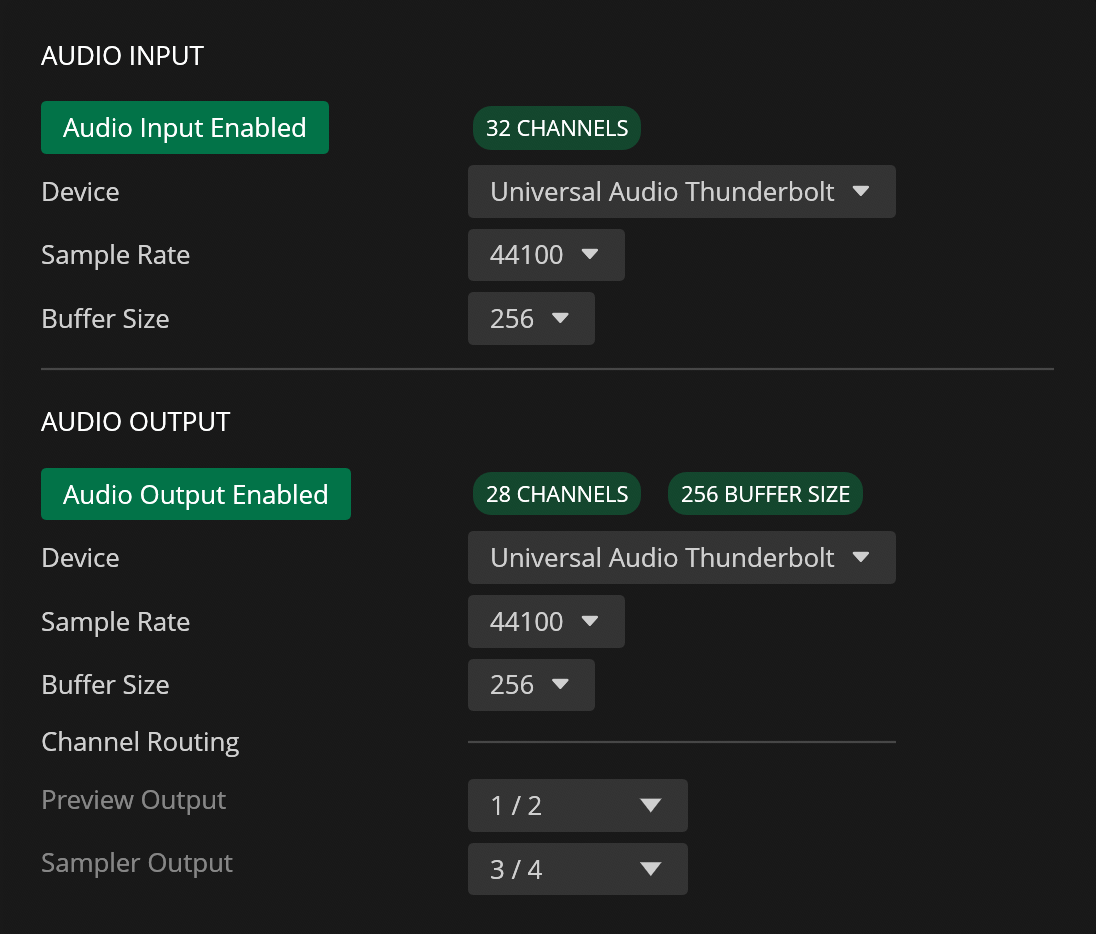
The Main output serves as the primary audio playback channel.
You can configure the output device, channel, sample rate, and buffer size via the Audio tab in Settings.
Sample Output
The Sampler output lets the user select a dedicated channel (in the same output device as Main) to use with Send to Sampler action and it's designed to speed up the process of sending / playing files and regions to external hardware samplers.
Audio Controls (Sidebar)
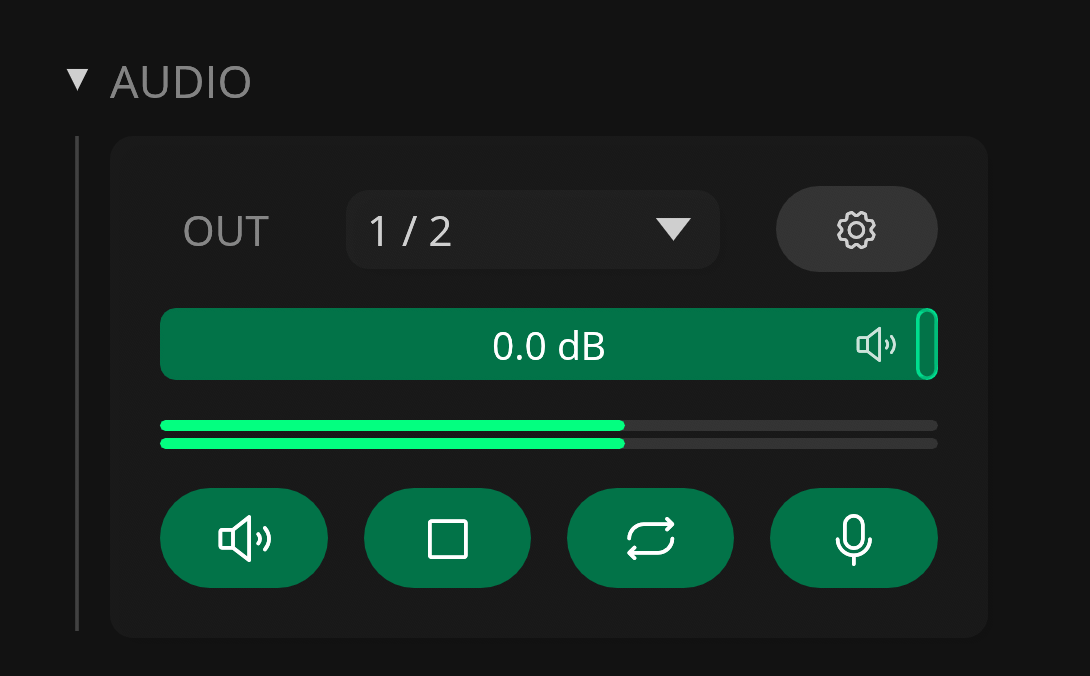
The Audio section in the Sidebar contains different parameters that can be used to control the audio playback in Recorte, including:
- Drop-down menu for Main output channel
- : Button to open the Audio settings
- Volume slider for the Main output
- : Button to enable / disable audio output
- : Button to stop playback (panic)
- : Button to enable / disable looping
- : Button to enable / disable audio input